Firmware
2016-12-27 14:52:39
PLENUE D Firmware V1.17
PLENUE D Firmware V1.17
POINT
Warning/Caution
The battery must be fully charged before firmware upgrade.
Do not reset PLENUE D during firmware upgrade.
Backup any important files in PLENUE D to your PC before firmware upgrade.
Please use firmware that COWON authorizes only.
JetEffect values might be initialized after firmware upgrade. Please record any important values.
EDIT
New features
- Improved the parsing error of ID3 Tag genre information.
DOWNLOAD
Firmware Download
PLENUE D Firmware V1.17 Download
UPGRADE INSTRUCTIONS
How to Install Firmware
Before Installation
1
Unzip the latest firmware provided by COWON and save it in any folder in your PC.
2
Please connect your PLENUE D directly to the USB port on your PC with the cable that is provided.
3
The battery of a device must be fully charged.
1
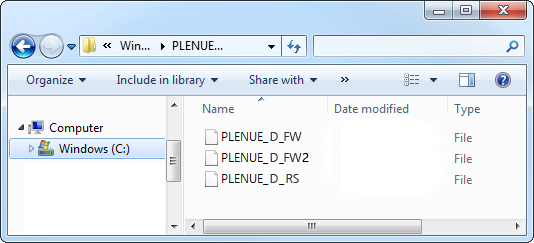
After downloading the firmware file (PLENUED_1.17.zip), unzip it (PLENUE_D_FW.BIN, PLENUE_D_RS.BIN).
2
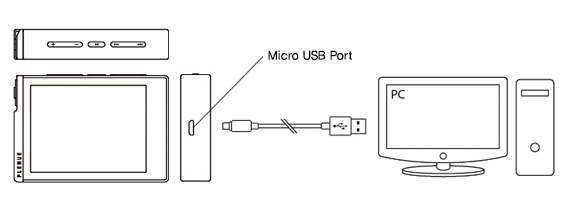
Turn on PLENUE D and connect it to a PC by a USB cable.
3
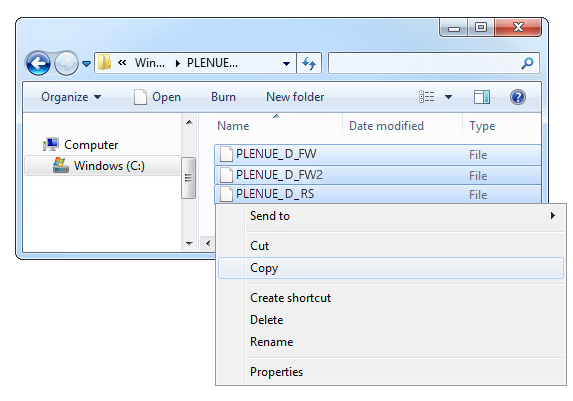
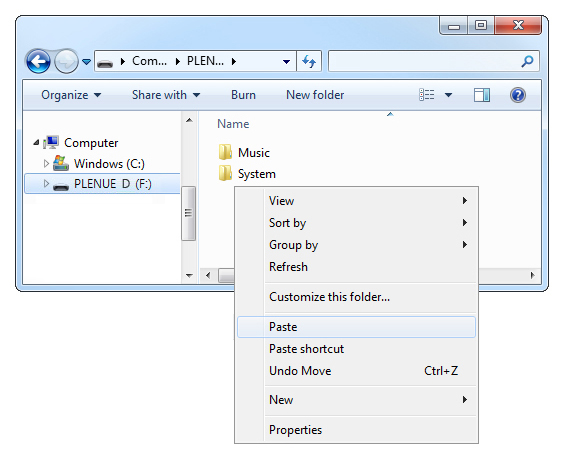
Copy and paste the two files (PLENUE_D_FW.BIN, PLENUE_D_RS.BIN) to the root folder of PLENUE D.
4
Right-click on the icon [Safely Remove Hardware] in the tray at the lower right corner of the screen to disconnect the device from the PC.
5
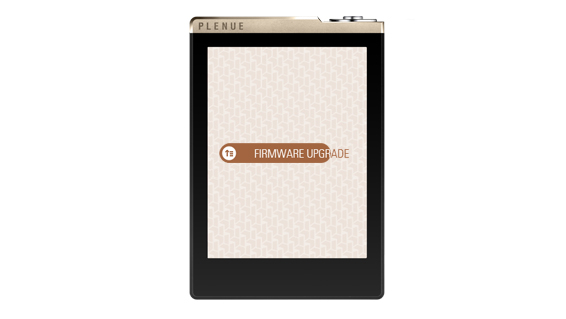
First of all, please make sure PLENUE D is turned off. Then, press a power button of the device. Firmware upgrade process will be shown on the screen followed by PLENUE D's automatic turning off. Please turn on the device again.
6
Firmware version is can be checked at settings > system > information.