Firmware
2017-01-23 09:32:03
COWON A5 Firmware V4.06
COWON A5 Firmware V4.06

Warning/Caution

Back up any important data before the firmware upgrade.
Please remove MicroSD card before the firmware upgrade.
Please make sure the AC adapter is connected while upgrading firmware.
Do not turn the player off before the firmware update has been completed.
It may damage the product, and will be void any warranty.

- Fixed the initialization issue when set the date on 2017.

COWON A5 Firmware V4.06 Download

* Please check version of firmware on Settings > About A5 > Firmware version


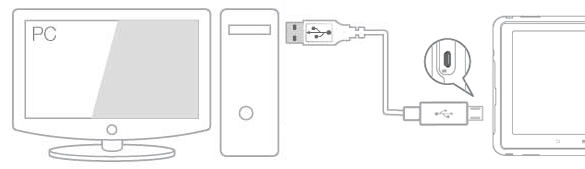
Use the USB cable to connect COWON A5 to the PC.

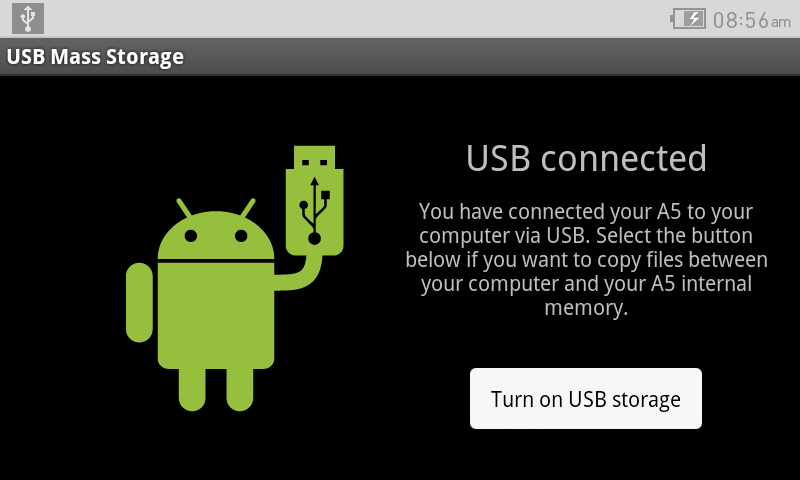
Select Turn on USB storage to copy files between PC and A5.

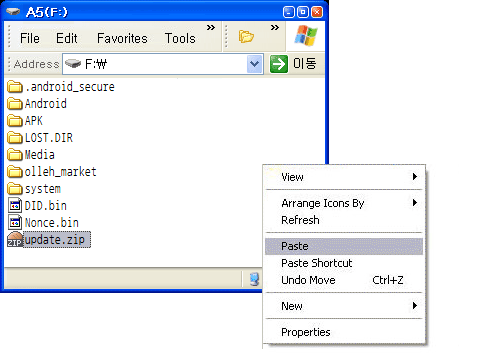
Copy and paste the firmware file to the root folder of the device.

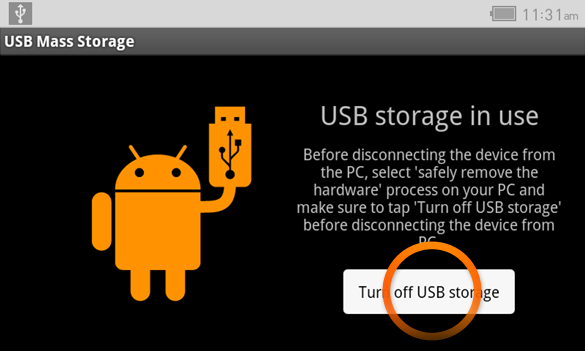
Click "Safely Remove Hardware" icon in the tray at the lower right corner of your
computer screen to disconnect the device from the PC.


Select Turn off USB storage and disconnect A5 from PC.

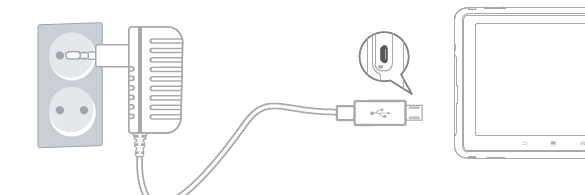
Connect AC adaptor with your device.

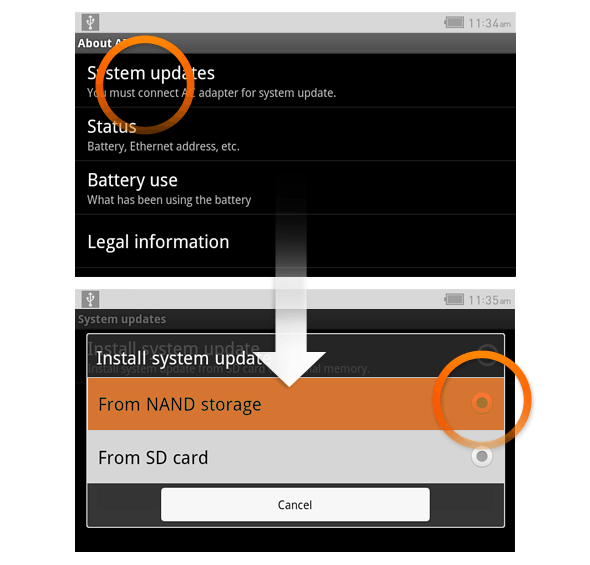
Settings > About A5 > System updates, select the storage where the file is saved to start
firmware upgrade.
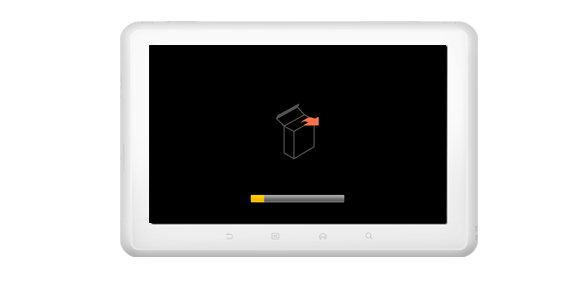

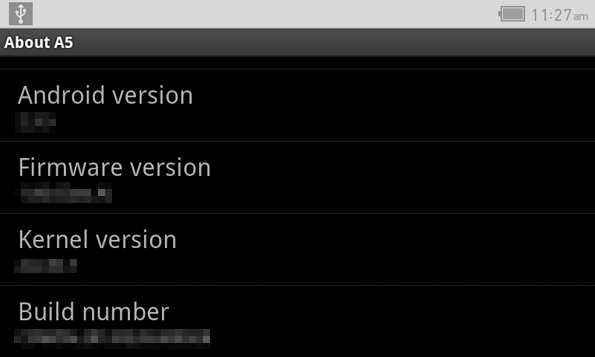
Upon finishing firmware upgrade, verify the installed firmware version from Settings >
About A5 > Firmware version.
Firmware upgrade can also be conducted through MicroSD cards by copying firmware
files to the root folder of MicroSD and inserting the MicroSD card into COWON A5.