Firmware
2017-05-23 14:31:36
PLENUE S Firmware V1.20
PLENUE S Firmware V1.20
POINT
Warning/Caution
The battery must be fully charged before firmware upgrade.
Do not reset PLENUE S during firmware upgrade.
Backup any important files in PLENUE S to your PC before firmware upgrade.
Please use firmware that COWON authorizes only.
JetEffect values might be initialized after firmware upgrade. Please record any important values.
EDIT
New features
- Change User Interface(UI)
- Add the function of showing information when change the playing music *
- Add the function of controlling volume touch **
- Fix the symptom which some part of high volume level isn¡¯t controlled in specific JetEffect setting
- Add the function of selecting USB DAC Power ***
* When Setting/Display/Show Song change is ON, information will be displayed for 5 seconds when device
plays the next music or user changes song during playing music.
plays the next music or user changes song during playing music.
** If user touches the volume icon at the top or if user sets Setting/System/Multi-Button as Volume and
touches Multi-Button, volume pop-up will be displayed and user can control the volume up and down by
touching.
touches Multi-Button, volume pop-up will be displayed and user can control the volume up and down by
touching.
*** When Setting/System/USB DAC Power is set as internal battery, PLENUE S¡¯ internal battery will supply
USB DAC Power. When Setting/System/USB DAC Power is set as PC/Smart Phone, PC or Smart Phone will
supply USB DAC Power.
USB DAC Power. When Setting/System/USB DAC Power is set as PC/Smart Phone, PC or Smart Phone will
supply USB DAC Power.
DOWNLOAD
Firmware Download
PLENUE S Firmware V1.20 Download
UPGRADE INSTRUCTIONS
How to Install PLENUE S Firmware V1.20
Before Installation
1
Unzip the latest firmware provided by COWON and save it in any folder in your PC.
2
Please connect your PLENUE S directly to the USB port on your PC with the cable that is provided.
3
The battery of a device must be fully charged.
1
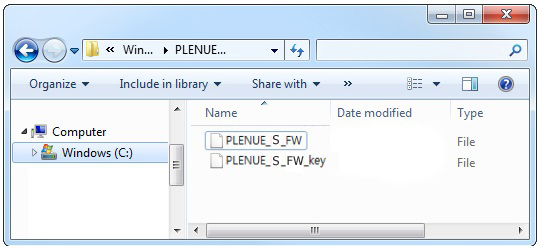
After downloading the firmware file (PLENUE_S_1.20.zip), unzip it (PLENUE_S_FW, PLENUE_S_FW_key).
2
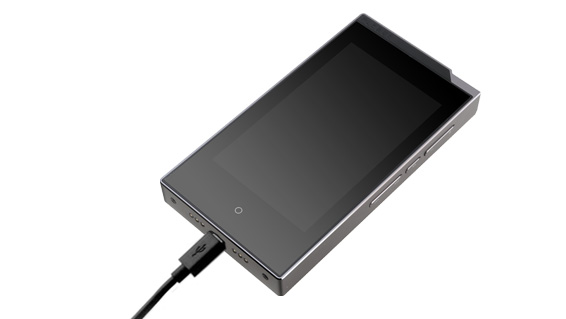
Turn on PLENUE S and connect it to a PC by a USB cable.
3
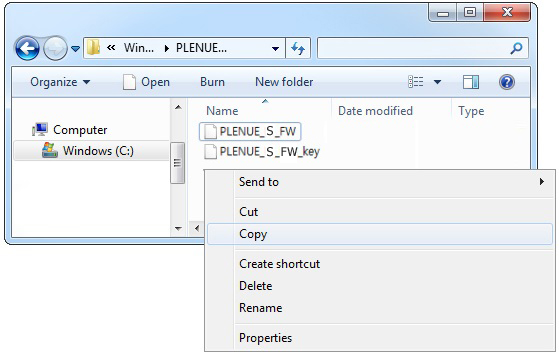
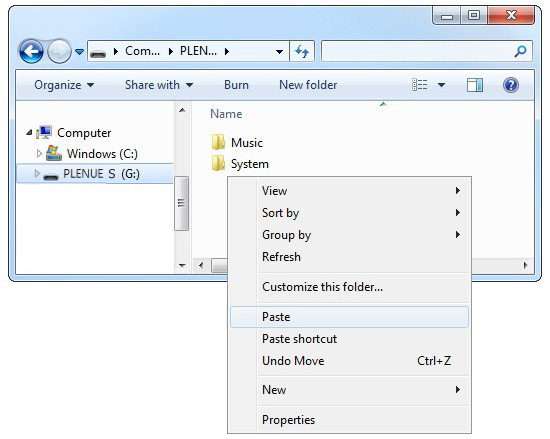
Copy and paste the two files (PLENUE_S_FW, PLENUE_S_FW_key) to the root folder of PLENUE S.
4
Right-click on the icon [Safely Remove Hardware] in the tray at the lower right corner of the screen to disconnect the device from the PC.
5
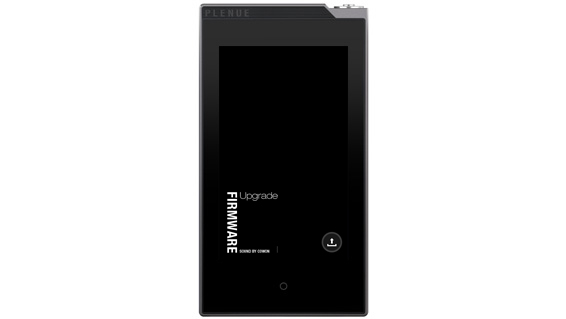
First of all, please make sure PLENUE S is turned off. Then, press a power button of the device. Firmware upgrade process will be shown on the screen followed by PLENUE S's automatic turning off. Please turn on the device again. There would be two times of firmware upgrade.
6
When PLENUE S turns off again after showing a 'Success' message on the screen, turn on the device again.
7
Firmware version is can be checked at settings > system > information.